
Entering Live Session Trades
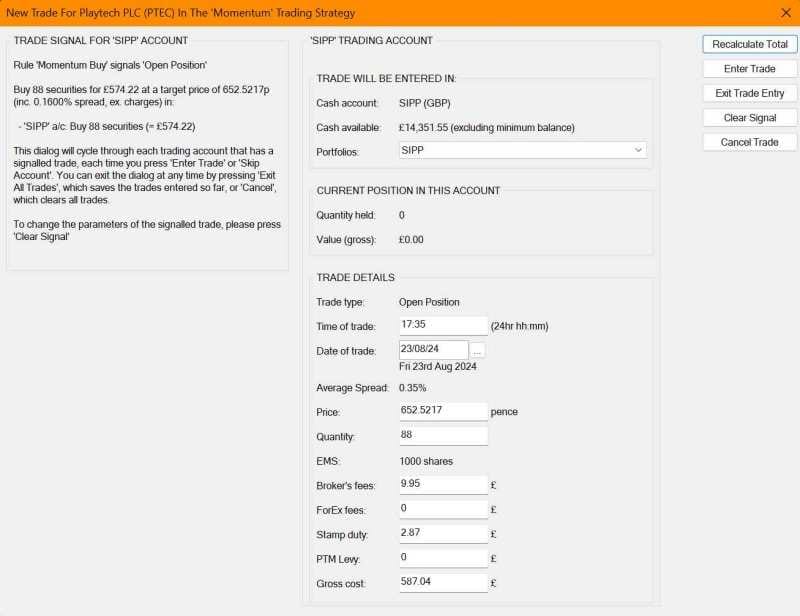
If you select a share in the Live session’s main Share List window (which has a trade signalled next to it in the RuleTrader Signals column) and then press the Trade Share button on the main chart’s panel, you will be presented with the Trade Entry dialog, shown above, with the details shown for the signalled trade in the selected share. All that remains is for you to enter the price you get from your broker, once you have made the trade.
Please note that the Trade Share button is not displayed if no trading accounts have been defined; or if the selected share is barred from being in the trading list
On the left of the dialog are displayed the strategy and rule that triggered the trade signal, and the quantities that should be bought or sold in each trading account.
Entering A Trade
Most of the details are already entered from the trade signal, and from the default broker charges you set in the Trading Costs settings dialog. The Stamp Duty and PTM Levy are also calculated for you. So assuming these are the still correct, all you need to do is:
- Select the ShareScope portfolio that will be used to store the position, if there is more than one linked to your trading account
- Enter the price from your broker
- Update the quantity field if you have traded a different quantity than that shown
- Hit the Recalculate Total button and confirm that the total value for the trade matches that reported by your broker. Occasionally these may differ by a penny or two due to differences in the way that your broker and RuleTrader handle rounding errors. This may happen if the trade is for a very high quantity of a share with a fractional price with many digits after the decimal point. If it does, and all the other component values otherwise match, then simply enter the revised total in the Gross Cost field on the dialog.
- Once you’re satisfied, click the Enter Trade button, on the right hand side of the dialog
The trade will then be recorded and monitored in RuleTrader and a copy of the transaction will be exported to the linked cash-account and portfolio in ShareScope.
Trades Split Across Multiple Accounts
If the trade is to be split between multiple accounts, then each time you press the Enter Trade button, the dialog will redisplay with the trade details for the next signalled trading account. There will also be a Skip Account button, if you wish to exclude an account from the trade, and an Exit All Trades button, which saves the trades entered so far (i.e. which you’ve pressed Enter Trade for) and skips the currently displayed trade and those for any remaining accounts. There’s also a Cancel button that clears all trades, so none are entered. All this is explained in the help area below the signal description on the left of the dialog.
In the dialog shown above, only one account is involved in the trade, so there is only an Enter Trade button to enter the trade, and an Exit Trade Entry button, which has the same effect as the Cancel Trade button, as no trades have yet been entered.
Overriding The Signalled Trade
You can override the signalled trade by clicking the Clear Signal button, which places the Trade Entry dialog in ‘manual mode’. This clears all the fields, so you must specify a trade-type (e.g. Open Position, Increase Position, etc.) and enter values for quantity, price, stamp duty and PTM levy yourself. Once done, please click the Recalculate Total button and confirm that the trade’s total value is the same as that reported by your broker.
You can also change the account to be traded for a signalled trade, by clicking the Change Account button (at the top of the dialog – not shown above) and selecting the alternative account (this may be a signalled account or not). If the account is not signalled (i.e. it wasn’t specified in the trading signal), then the Trade Entry dialog will again enter ‘manual mode’ and you will need to enter all values yourself.
Warning! If you clear a signalled trade, or choose a non-signalled account for a signalled trade, this does not replace the signalled account trades. Instead, the trades are still presented next in the Trade Entry dialog, for each signalled account. So if you do not wish to trade these accounts, then you must either click the Skip Account or Exit All Trades buttons.
Entering Non-Signalled Trades
You can also enter a trade that is not signalled for a share that may or may not be in the trading list. Simply select the share in the Share List window and click Trade Share. If the share is associated with multiple trading strategies’ lists, or is not associated with any strategies (i.e. it’s not in the overall trading list), and the trade would result in a new position, then you will be asked to specify which strategy is to monitor the position. If the share is not currently in the trading list then it will be automatically added and back-filled (see How A Trading Specification Is Executed) before the Trade Entry dialog is displayed.
As discussed above, entering a non-signalled trade places the Trade Entry dialog in ‘manual mode’, so you must enter trade type, quantity, price, duties and levies yourself. You should then always click the Recalculate Total button and confirm that the trade’s total value matches that reported by your broker.
Editing or Deleting A Previously Entered Trade
This is best done in the ShareScope Transaction window for the portfolio that holds the trade. Once you have completed your changes in ShareScope, please press the Sync Accounts button in the Trading Accounts tab of the Live Dashboard dialog, to incorporate those changes in RuleTrader.
