
Graphical Information
RuleTrader has been designed to make the operation of your Trading System as transparent as possible. One way of doing this is through graphic overlays that RuleTrader displays on the main Historical Chart and on the Indicator panels beneath that chart. These are designed to give you an instant, intuitive insight into RuleTrader’s operation and are comprised of a range of elements, described next.
Note that definitions are normally only evaluated when required to evaluate a trading rule. However, when an overlay is created to show that definition’s value or state, then it must be evaluated every day to update the overlay. Because of this, having a large number of overlays defined may slow down your back-tests.
AutoTrend Price Channels

Price-channels are drawn to represent micro, short, medium and long term trends using RuleTrader’s unique AutoTrend Price-Channels system. They include bands to help you locate a share’s price within its channels and status indicators so you can quickly see where a trend is headed. Settings to configure the appearance of these channels on your chart are included in the Channel Styles Settings topic.
Gain/Loss Symbols
Gain/Loss symbols or lines connects two chart price bars, where shares were bought and sold. They provide a quick, intuitive way to see when a position was opened and closed and include, in their centre, the ROI from that position. Their colour instantly shows whether the position is profitable or not. See the Chart Symbols topic for the various ways these very useful indicators can be configured.
Interpreting Gain/Loss Symbols
Note that gain/loss symbols represent matched buy/sell trades. This is illustrated in the following example, which shows three gain/loss lines that represent four trades related to one position, which was:
- opened at A
- increased at B
- decreased at C
- closed at D
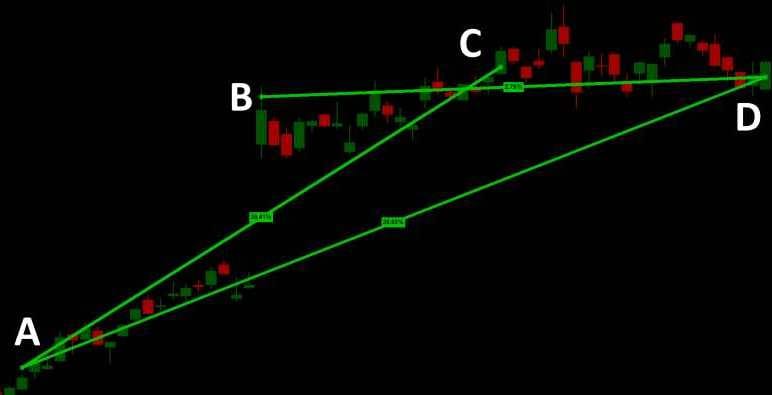
So, the starting points of two of the lines at A and B represent purchases, while the ending points at C and D represent sales. Also, as you can see, point A has two lines emanating from it representing the fact that it was sold in two tranches, at C and D. B only has one line leaving it, because it was sold completely at D, while D has two lines entering it because it sold shares purchased at both A and B.
Rule Highlights
So you can immediately see which trading rules in your Trading Spec were responsible for which trades, a coloured disc can be drawn around the trades of each rule you’re interested in, as shown below. Use the Rule Highlights settings dialog to specify which rules are to be highlighted and the colours to use to represent them.

Chart Overlays
Chart overlays are graphical elements drawn on top of the chart to show the value or state, over time, of elements in your Trading Spec, including the:
- value or state of a Named Term
- times when Trading Rules and Trading Strategies are triggered
- periods when a security was selected by a List Selector for a strategy’s trading list

As such, they provide an excellent way to see what’s going on in your Spec and are a useful tool both for monitoring the operation of your system and for finding and fixing problems in it. To learn how to create a Chart overlay, and for information on the different styles of overlay available to you, please refer to the Chart Overlay Settings topic.
Indicator Panel Overlays

Indicator overlays operate like Chart overlays, except they are displayed in the Indicator panel that ShareScope allows you to add below the main Historical Graph. This reduces the clutter in the main chart.
It also means they are not dependent on the Chart’s vertical price scale, which is really only useful for displaying the value of expressions that are dependent on the chart security’s price and which are in the price’s minor currency units. So if you wish to show, for example, the number of securities selected for a strategy’s trading list or some benchmark list, or some other value that has nothing to do with price, then use the Indicator overlays.
To find out how to create and style an Indicator overlay, please refer to the topic Adding A Value Indicator
Important Information About Overlays
- In test sessions, the overlay must be defined before the test is run, so RuleTrader knows to gather data for the overlay. In live sessions, data is gathered and the overlay is drawn from the date the overlay was created.
- Overlays are saved to disk with the session data. As they can take up a fair bit of storage in that data, they are automatically purged from your files after they have not been used for the number of days specified in Advanced Settings.
- Also note that overlays are only updated for shares that are in the trading list. Because of this you may wish to define your Spec’s List Selectors so that an index or other non-tradeable instrument is always included in your trading list, as demonstrated in the Example Trading Spec’s use of the ‘Index‘ Shared Lists selector term. This ensures you have at least one member of your trading list that can display a full history of your overlays, over the entire test period. You should ensure that the trading of indices is disabled in System Settings, before doing this (not required for RuleTrader Live sessions).
You’ll also notice that in the System Settings for RuleTrader Test that you can specify when indices are evaluated and their overlays are updated, relative to the other shares in the trading list. This only applies In back-tests, where sell rules are always evaluated for shares with positions, before buy rules are evaluated for share without positions, to ensure cash from a potential sell is available for a potential buy (see How Trading Rules Are Evaluated). So the options are: before sells and buys, after sells but before buys, after sells and buys. This can be useful for ensuring your overlays display the values you want at the correct time in the evaluation cycle. This is not applicable in RuleTrader Live, which evaluates rules as and when intraday data arrives.
- Normally, terms are only evaluated when their data is required but if an overlay is defined on the data produced by the term, then the term must be evaluated for every day of the back-test. Depending on the complexity of the term, this may slow down your back-tests.
Status Panel

Though not a graphic device, the Status Panel is still an important component of RuleTrader’s efforts to tell you what’s going on in your system. It is an area, displayed on the chart, that displays lines of text information. Each line consists of a label for the information followed by the information itself. Please refer to Status Panel Settings for further information on enabling and configuring the panel.
