
Execution Report tab
RuleTrader’s Execution Reports allow you to drill-down into the detail of exactly what is going on in your Trading Spec. They are a powerful feature that provide a detailed, step by step breakdown of how the rules, lists and terms in your Trading Specification are evaluated, so you’re never in the dark about why your trading system does what it does. If something is happening and you’re not sure why, or if you want to find out how a particular component in your Spec is processed, then the Execution Reports tab is the place to go to turn reporting on.
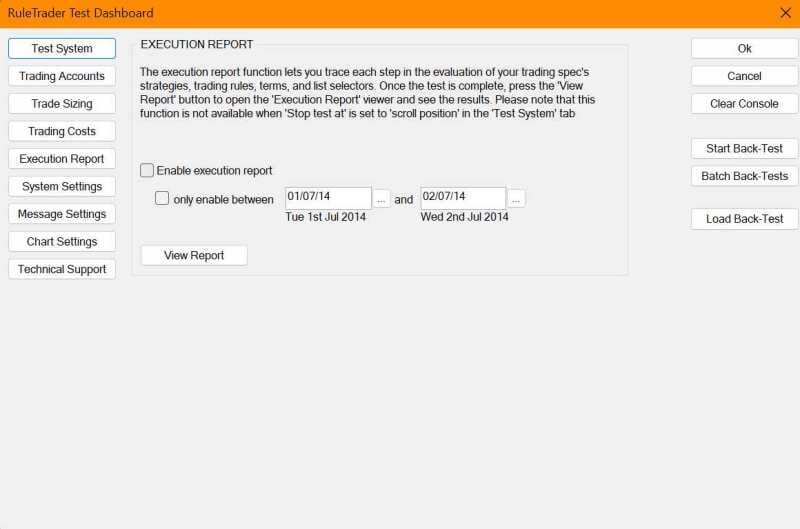
Because these reports generate a lot of data, they will slow down the execution of your Trading Spec (which is why they’re not available in RuleTrader Live sessions), so they should be used wisely, ideally with back-tests over a short test period. If that’s not possible then you can use the date-pickers on this tab to specify a time period that you want the report to run over, within a longer back-test. This is helpful if you want to focus on a particular time when your Spec isn’t behaving as you’d expect and you want to find out why.
You also need to ensure you have sufficient disk-space for the 10’s of megabytes that may be required by the report’s data-file (it’s deleted every time a report is run, so there’s never more than one such file).
To make it easy to deal with all the data that’s generated we’ve included a special program to view your reports. This is opened by clicking the View Report button on the Execution Report tab.
In this viewer all the data is arranged, like the layers of an onion, in a hierarchy of detail. When you first open the viewer, you’re looking at the outer layer. You can then expand an aspect of this layer that interests you and drill-down through the increasingly detailed inner layers, until you find the answer you’re after. A separate help system, explaining how to use the Viewer, is accessed by pressing the F1 function key on your keyboard, when you are in the Viewer.
