
Chart Symbols & Index Lines
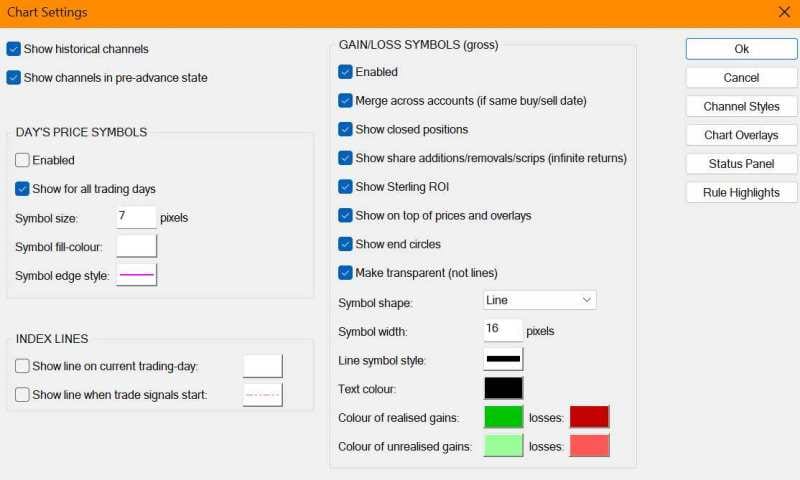
These settings all relate to the display of graphics on the main historical OHLC price chart in the top right-hand corner of the RuleTrader layouts
Show historical channels: If checked all channels are displayed (historical and current), otherwise only the currently active channel is displayed
Show channels in pre-advance state: AutoTrend channels are advanced after market close, when the end-of-day database update has occurred. However, when your Trading Spec’s rules test a price’s position in a channel, this must necessarily be done before market close, in case a buy or sell is signalled. So if you are manually advancing through a back-test and reviewing the price location against the channels on the Chart, then check this option if you want to see what your Spec sees i.e. the state of the channel before it is advanced for that day. If unchecked, then the channels are shown on the Chart after they have been advanced on the day the back-test has currently reached.
Day’s Price Symbols: The settings in this group determine if and how the ‘Day’s Price’ for a share is displayed on the share’s chart (see System Settings for how the ‘Day’s Price’ is calculated)
Index Lines: This group’s settings determine if a vertical line is displayed on the chart on the current trading day, and on the day when trade rule evaluation started for the share (i.e. after the share’s initial backfill period, if any)
Gain/Loss Symbols
Gain/Loss symbols provide a fast way to see when a position was opened and closed (or is still open), the ROI from that position, and whether the position is profitable or not. ROI is calculated nett of spread and costs for closed positions. For open positions, it is calculated nett of the buy charge and spread. The settings are as follows:
- Enabled: Enables / disables the display of all gain/loss symbols
- Merge across accounts (if same buy/sell date): If a buy or sell trade has been split across trading accounts, checking this option ensures a single gain/loss line is displayed for all accounts’ positions. Otherwise multiple lines are drawn, which may be confusing.
- Show closed positions: If this is unchecked, gain/loss lines will only be shown for currently open positions
- Show share additions/removals/scrips (infinite returns): Because these types of trades involve zero cash expenditure, the gain/loss line will start from zero on the vertical price scale (which is usually off the bottom of the chart) and the ROI will be infinite. Check this option to suppress this type of gain/loss line
- Show Sterling ROI: If checked the share’s price currency will be converted to sterling before the ROI is calculated and displayed. Only relevant for trades in foreign shares
- Show on top of prices and overlays: If checked, the gain/loss lines will not be obscured by price bars and any overlays you have defined for the chart
- Show end circles: This styling option makes the end-points (i.e. the buy/sell trades) of the gain/loss lines a little clearer, if checked
- Make transparent (not lines): Checking this option makes the gain/loss symbol transparent. Has no effect if Line is selected for the symbol
- Symbol shape: Defines the type of symbol drawn between the gain/loss end-points
- Symbol width: Specifies the width of symbol to draw, in pixels
- Line symbol style: If Line is selected for the gain/loss symbol this setting determines the line’s thickness
- Text colour: Specifies the colour of text to use for the ROI value
- Colour of realised gains / losses: Historical (i.e. realised) gain/losses are rendered in these colours
- Colour of unrealised gains / losses: Current (i.e. unrealised) gain/losses are rendered in these colours
