
RuleTrader Test & Live Layouts
RuleTrader Test and RuleTrader Live occupy two separate layouts in ShareScope. This demarcation also underlines the separation between the two halves of RuleTrader – nothing you do in RuleTrader Test will affect your live trading system and vice-versa.
To switch between a test session in RuleTrader Test and a live session in RuleTrader Live is simply a matter of switching between these two layouts. The fastest and easiest way to do this is to click on the RuleTrader Test or RuleTrader Live tab in the Layouts toolbar, which is usually located at the bottom of the ShareScript window.

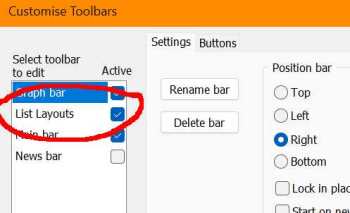
If this is not displayed, please check you have ShareScope’s View > Toolbars menu option checked. You’ll also need to ensure that the ‘List Layouts’ option (see the image below) is checked on the left of the ‘Customise Toolbars’ dialog, which is accessed through the ShareScope’s Tools > Customise Toolbars… menu option. For further information on using ShareScope’s layouts, please refer to the ‘Window Layouts’ topic in the ShareScope Help contents.
If you cannot find the Layouts toolbar, then you can switch between RuleTrader layouts using ShareScope’s Window > Change Layout menu option and then selecting either RuleTrader Test or RuleTrader Live in the sub-menu that appears
Share List, Transaction Portfolio and Historical Chart
In both the RuleTrader Live and RuleTrader Test layouts you’ll see a Share List window on the top left of the layout and a Historical Graph (also referred to as a chart) window on the top right, with RuleTrader’s control buttons displayed in the panel at the top left of the Historical Chart (though you may need to click the panel to expand it, before you can see the buttons).

In RuleTrader Live sessions (only) you’ll also see a Transactions portfolio window below the Share List. This can be used to display RuleTrader trades in the portfolio linked to its trading accounts.
For RuleTrader to operate correctly, the Share List window and Historical Graph must always be displayed (see RuleTrader Chart Is Missing if they’re not) and must be associated with the following settings:
| Element | RuleTrader Test Setting | RuleTrader Live Setting |
|---|---|---|
| Share List | RT/Test List table setting | RT/Live List table setting |
| Historical Graph | RuleTrader Test chart study | RuleTrader Live chart study |
In the Test session, you should also see a Usage In Test column in the Share List window. In the Live session it is essential that the RuleTrader Signals and RuleTrader Rules columns are both displayed in the Share List window for the Live session to operate correctly. If any of these columns are missing, then please refer to RuleTrader Column Is Missing for help on restoring them.
In addition, the RuleTrader Signals column should be sorted in descending order so the signals and list membership labels are showing at the top of the column. If they aren’t then please double-click on the column header once or twice until they are (the little arrow-head in the column header should be pointing upwards). If, after doing this, the column appears to be empty then please refer to RuleTrader Signals Column Not Displaying Data
Otherwise, feel free to amend any other elements in the layouts, or to change the list shown in the Share List window, or to restyle any window, including the Share List and Historical Chart, to suit your own tastes.
