
Moving Through The Wizard
Once you’ve entered the required data in the definition entry line, click the Next button to move to the next dialog in the Wizard, where you’ll be asked to enter any more information that’s required to complete your definition. You’ll also notice a Previous button appears; clicking this takes you back through the previous steps, where you can amend your entries if you change your mind or make a mistake.
As you build your definition, you’ll notice a sentence is being constructed immediately above the definition entry line. This describes the definition you’re creating in plain English. It’s circled in red, below, where a Private Term is being built to establish whether the evaluated security‘s profit growth is ranked in the top 10% of its market sector:

All you’re having to do is choose options and enter data on the definition entry line, as instructed by the help messages, and voila, a powerful value, condition, share or list selection expression takes shape, without a single line of code required!
This simple process continues until you’ve finished picking/entering the data required by the definition. Your final click on the Next button will end the creation process and the Wizard will show your completed definition with an Edit button next to it, as shown below.
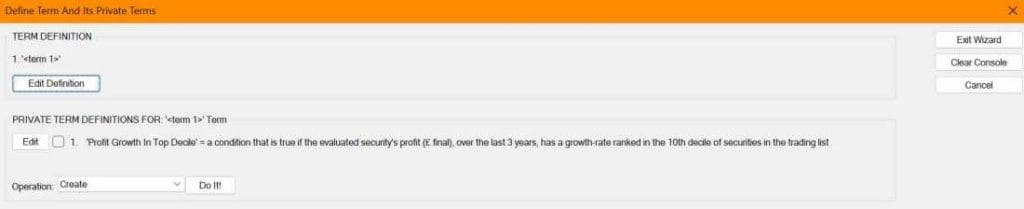
You can now:
- Continue the definition of the parent or main definition, by clicking the Edit Definition button in the top half of the Wizard, or
- Click Edit next to a Private Term definition in the lower half to edit that, or
- Choose Create in the Operation drop-down and click Do It! to start another Private Term definition.
