
Message Settings tab
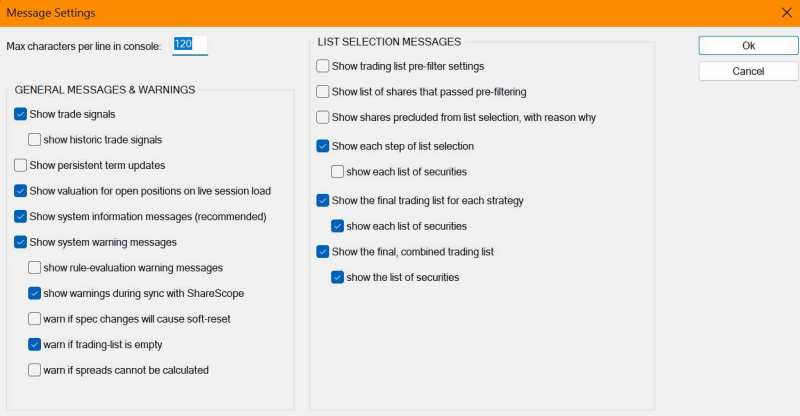
The settings in the Message Settings sub-dialog determine the type of messages that are displayed in the Console. The first setting is:
- Max characters per line in console: This sets the maximum number of characters that are shown in any message line before the message wraps. This is useful for ensuring all messages can be seen, irrespective of the width you set the Console to, as the console does not have a horizontal scroll-bar.
General Messages & Warnings
Checking any of the following settings enables the category of messages described
- Show trade signals: Details of a trade signal is displayed in the console as soon as the signal is raised
- show historical trade signals: Trade-signals that are raised during the Live session’s catch-up period are also displayed in the console
- Show persistent term updates: Every time an Action Rule updates a Persistent Term then the details are displayed in the console
- Show valuation for open positions on live session load: Shows the valuation of all open positions after the Live session has completed loading
- Show system information messages (recommended): Enables RuleTrader information messages, which describes what operation RuleTrader will perform or has performed. We recommend you leave this checked.
- Show system warning messages: This top-level setting enables or disables all warning messages. If it is checked, you can also enable/disable any of these specific categories of message:
- show rule-evaluation warning messages: Enables the display of a warning if RuleTrader encounters an issue, while evaluating your Trading Spec. If you find there are too many warnings (many of which can be ignored) we recommend that your disable this setting
- show warnings during sync with ShareScope: This is a useful check to highlight synchronisation errors, which may otherwise go unnoticed, between your trading accounts and its linked ShareScope cash-account and portfolio(s)
- warn if spec changes will cause soft-reset: This can be a useful reminder that editing a Live session Trading Spec will result in a soft-reset that may take a few minutes to complete
- warn if trading-list is empty: If this is unchecked you’ll still notice that your trading system’s List Selectors failed to select any shares, because the RuleTrader Signals column in the Share List window will contain no signals
- warn if spreads cannot be calculated: If a share’s average spread cannot be calculated because there is insufficient bid-offer data in the averaging period, then a warning will be issued. This is of limited utility in Live sessions as, in this event, the average spread will simply be set to the default you specified in the Trading Costs tab
List Selection Messages
One of RuleTrader’s design goals was to provide complete transparency into its operations. This includes the selection of trading lists, the information about which is controlled by these settings. Checking an option enables messages:
- Show trading list pre-filter settings: Displays the filters you set for selecting the Trading Universe (if enabled) each time the list is selected
- Show list of shares that passed pre-filtering: Lists all the shares that were selected for the Trading Universe
- Show shares precluded from list selection, with reason why: Displays those shares that will not be included in list selection because they failed a validation test (e.g. no prices in the list period, not tradeable, suspended, delisted, etc.)
- Show each step of list selection: Displays each step in the list selection process
- show each list of securities: Shows the list of shares that results from each step of the process
- Show the final trading list for each strategy: Displays the final list selected for a trading strategy
- show breakdown of securities: Separately displays the securities that are permanently in the list, or were added to the list, or continued from the previous list, or removed from the list, or reinstated in the list because they have an open position
- Show the final, combined trading list: Shows the combined list across all strategies, with each share included once only
- show breakdown of securities: Separately displays the securities that were added to the list, or continued from the previous list, or were removed from the list
